User Guide KeyAlarm for iOS
01Setup — three permissions
On first launch KeyAlarm asks for three permissions, in order. The first two are both required — without either, no alarms can be set.
| Full calendar access | Read-only, to look for your keywords in event titles. KeyAlarm never changes your events and never sends them anywhere. |
|---|---|
| Alarms | Lets the app ring real system alarms (AlarmKit) — the kind that ring through Silent mode and Focus, just like the Clock app. |
| Notifications (optional) | Used for the nightly watchdog notification. Alarms themselves ring even without it. |
02Creating rules
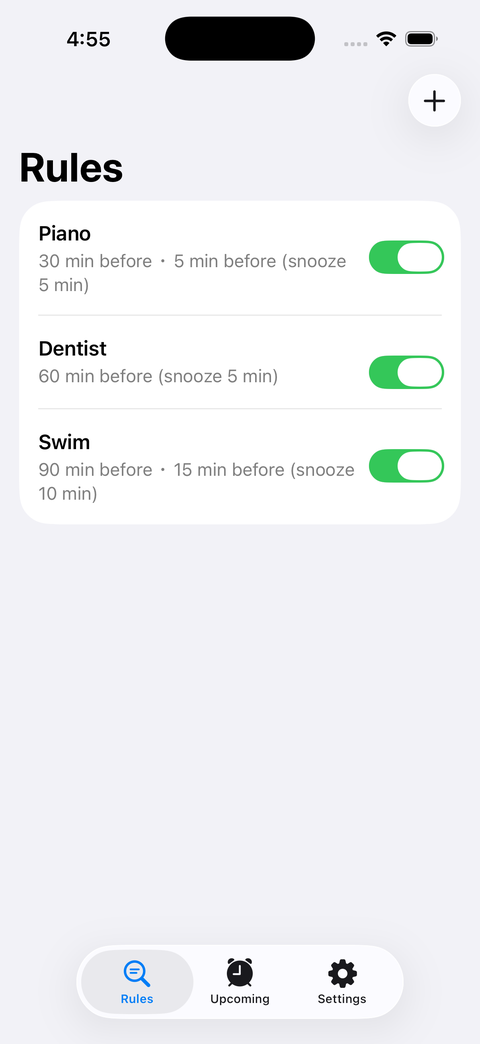
Tap + at the top of the Rules tab. A rule is simply “which events” plus “how many minutes before”.
Rule types
Search by keyword — the rule matches any event whose title contains your text. Matching is partial and case-insensitive (“piano” matches “Piano lesson” and “Recital (piano)”).
All events in a calendar — skip keywords entirely and ring every event in the calendars you select, whatever they say. Handy for a calendar dedicated to your kid's activities. This mode requires selecting at least one calendar.
Where to search
Choose between “Title only”, “Title and notes”, or “Title, notes, location”. The wider the scope, the more unintended matches — start with title only.
Lead times (multiple allowed)
Pick more than one and a single event rings more than once: 30 minutes before to get ready, 5 minutes before to leave. Use “Other (minutes)” for custom values.
Snooze
Alarms keep ringing until you press Stop. If you press snooze, the alarm rings again after the interval set here.
Limiting to specific calendars
Turn on “Only specific calendars” to match keywords only within the calendars you choose — e.g. ring “meeting” only from your work calendar.
03Reading the Scheduled tab
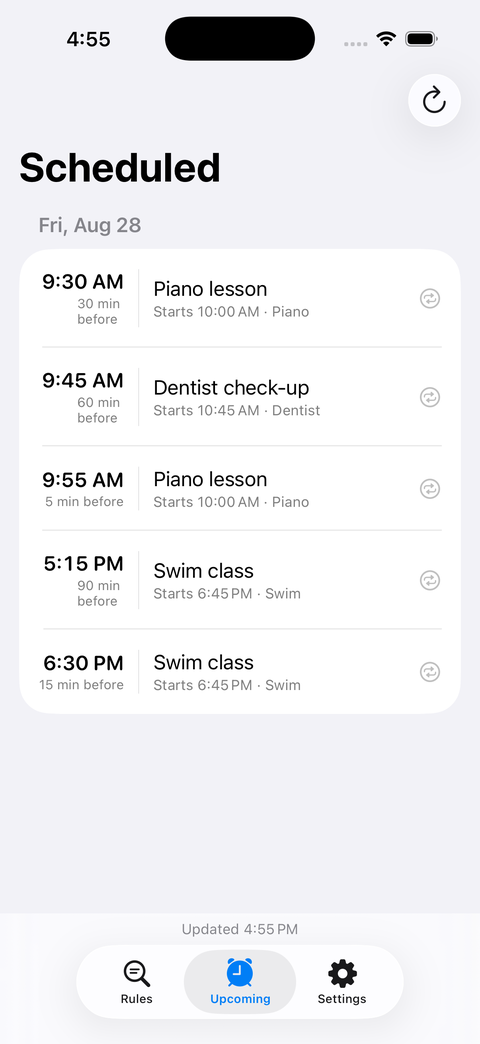
The Scheduled tab lists every upcoming alarm in time order: the ring time and lead on the left, the event title, start time, and matching rule on the right.
If an alarm is listed here, it will ring at that time — even if you close the app or restart your iPhone. Whenever you wonder “is it actually set?”, look here.
Pull down to refresh: this re-fetches your calendars and rescans. Use it right after adding an event to confirm it was picked up.
To cancel a single alarm, use the button at the right edge of its row. Only the next occurrence is cancelled; the rule itself stays.
04The pre-alarm countdown and skipping one alarm
With “Show countdown” enabled in Settings, the remaining time appears on the Lock Screen, in notifications, and in the Dynamic Island before an alarm fires.
- Tap the × on the countdown to silence just that one alarm (the rule stays)
- If one event has several alarms, only the first one shows a countdown
- Turning the countdown off doesn't affect ringing
You can also choose how many minutes ahead the countdown appears; it shrinks automatically when the alarm is close.
05The nightly watchdog notification
Enable “Nightly status notification” in Settings and KeyAlarm tells you every evening how many alarms are set for tomorrow.
06When calendar sync is slow (important)
KeyAlarm reads the calendars on your iPhone. An event you add to Google Calendar (or any external calendar) goes to their server first — KeyAlarm can only see it after your iPhone fetches it.
With the fetch schedule set to “Automatically”, the iPhone only fetches while charging and on Wi-Fi. Otherwise it waits until you open the built-in Calendar app. This is the number-one reason an event you just added has no alarm yet.
The one-minute fix
- Open the iOS Settings app
- Go to Apps → Calendar → Accounts
- Open Fetch New Data
- At the bottom, choose “15 min”
Delay is now at most 15 minutes. Also make sure Background App Refresh is on for KeyAlarm in iOS Settings, so events added while the app is closed still get picked up.
07Limits and missed events
There is a cap on simultaneous alarms (default 30, adjustable in Settings). Beyond the cap, the furthest events are not registered — a banner at the top of the screen tells you.
If an event is added after its lead time has already passed (e.g. a “30 min before” rule for an event starting in 10 minutes), that alarm cannot be set; it's shown as a missed event.
“Look ahead” (default 14 days) controls how far into the future KeyAlarm scans. The further ahead, the longer alarms keep ringing even if you don't open the app for days.
08All-day events
All-day events are excluded by default, because “5 minutes before” would land the night before. Enable “Include all-day events” in Settings to cover them.
09Purchase and restore
Everything is free for 30 days. Continuing after that requires a one-time purchase. No subscription — you pay once.
- When the trial ends, alarms you already set keep ringing; only new events stop being registered
- After switching phones or reinstalling, use “Restore Purchases” in Settings (free with the same Apple account)
10Checklist: an alarm didn't ring
- Is the event listed in the Scheduled tab? If not, no alarm was created — continue below
- Are both permissions “Allowed” in the Settings tab? Either one missing blocks all alarms
- Is the keyword in the event's title? If it's in the notes or location, widen “Where to search”
- Has the event reached your iPhone? Check the built-in Calendar app; if it's not there, see calendar sync
- Was the lead time already past when you added the event?
- Did you hit the alarm cap? Check for the banner
- Has the trial ended? Existing alarms ring, but new events stop being registered
Still stuck? Reach us via the contact form.
11FAQ
Does it really ring on silent?
Yes. It uses the same mechanism as the Clock app's alarms (AlarmKit). It rings in Focus modes too.
Can I use the iOS system ringtones?
No — Apple doesn't make them available to third-party apps. The sounds in the app were made specifically for KeyAlarm.
Do my events ever leave my device?
Never. KeyAlarm has no servers; everything is processed on your iPhone. See the privacy policy (Japanese).
Is there an Android version?
Currently iPhone only (iOS 26 or later).
Why does it require iOS 26?
AlarmKit — the framework that makes real third-party alarms possible — was introduced in iOS 26.